

Overview
MCP Toolbox for Databases is an open source MCP server for databases. It was designed with enterprise-grade and production-quality in mind. It enables you to develop tools easier, faster, and more securely by handling the complexities such as connection pooling, authentication, and more. Toolbox Tools can be seamlessly integrated with LangChain applications. For more information on getting started or configuring MCP Toolbox, see the documentation.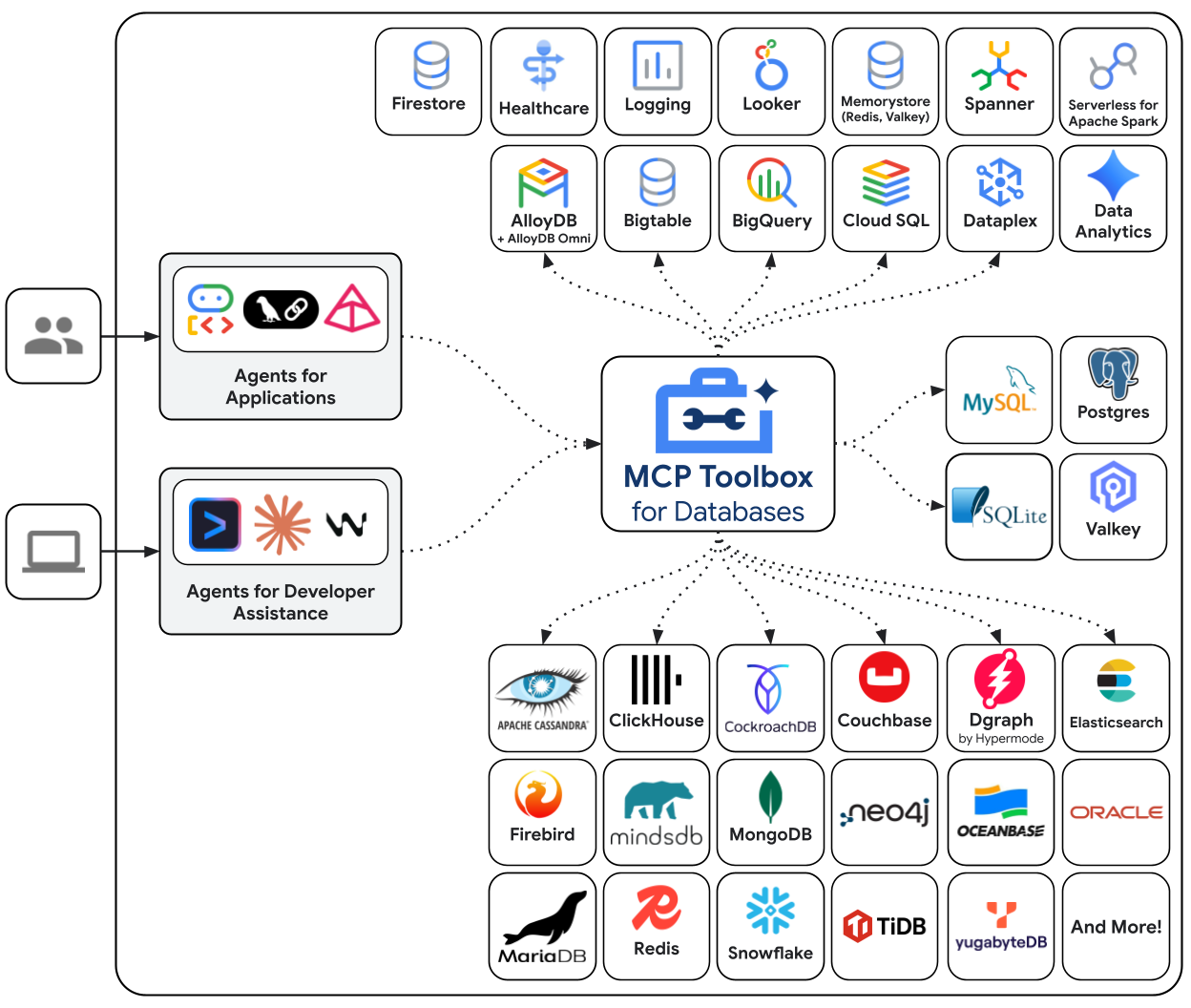
Setup
This guide assumes you have already done the following:- Installed Python 3.9+ and pip.
- Installed PostgreSQL 16+ and the
psqlcommand-line client.
1. Setup your Database
First, let’s set up a PostgreSQL database. We’ll create a new database, a dedicated user for MCP Toolbox, and ahotels table with some sample data.
Connect to PostgreSQL using the psql command. You may need to adjust the command based on your PostgreSQL setup (e.g., if you need to specify a host or a different superuser).
hotels table and insert some data:
psql by typing \q.
2. Install MCP toolbox
Next, we will install MCP Toolbox, define our tools in atools.yaml configuration file, and run the MCP Toolbox server.
For macOS users, the easiest way to install is with Homebrew:
tools.yaml file. This file defines the data sources MCP Toolbox can connect to and the tools it can expose to your agent. For production use, always use environment variables for secrets.
toolbox. If you downloaded the binary manually, you’ll need to run ./toolbox from the directory where you saved it:
http://127.0.0.1:5000 by default and will hot-reload if you make changes to your tools.yaml file.
Instantiation
Invocation
Use within an agent
Now for the fun part! We’ll install the required LangChain packages and create an agent that can use the tools we defined in MCP Toolbox.ChatVertexAI for the model and ToolboxClient to load our tools. The create_agent from langchain.agents creates a robust agent that can reason about which tools to call.
Note: Ensure your MCP Toolbox server is running in a separate terminal before executing the code below.
Run the agent
API reference
The primary class for this integration isToolboxClient.
For more information, see the following resources:
MCP Toolbox has a variety of features to make developing Gen AI tools for databases seamless:
- Authenticated Parameters: Bind tool inputs to values from OIDC tokens automatically, making it easy to run sensitive queries without potentially leaking data
- Authorized Invocations: Restrict access to use a tool based on the users Auth token
- OpenTelemetry: Get metrics and tracing from MCP Toolbox with OpenTelemetry
Community and support
We encourage you to get involved with the community:- ⭐️ Head over to the GitHub repository to get started and follow along with updates.
- 📚 Dive into the official documentation for more advanced features and configurations.
- 💬 Join our Discord server to connect with the community and ask questions.
Connect these docs to Claude, VSCode, and more via MCP for real-time answers.